If your instance ever needs an increase in memory limit, you must create a php.ini (phprc) file.
While most WordPress hosting users will have to edit the PHP.ini and wp-config files, Cloudways users can change the value from within the application settings on the Cloudways Platform.
Cloudways is running a summer promotion until 15 September 2026: 40% off for four months with the code SUMMER404, plus unlimited free expert-led migrations. It applies to every plan, including Autonomous. On the $11 DigitalOcean Standard plan that’s $6.60/month and $17.60 saved across four months, against $9.90 over three months with our year-round HOSTINGSTEP code.
Check Cloudways dealIncrease the PHP memory limit in Cloudways
You can increase the PHP memory limit in Cloudways by following these simple steps:
- Login to your Cloudways account
- If you have multiple servers, click on the server name where you need to change the PHP limits.
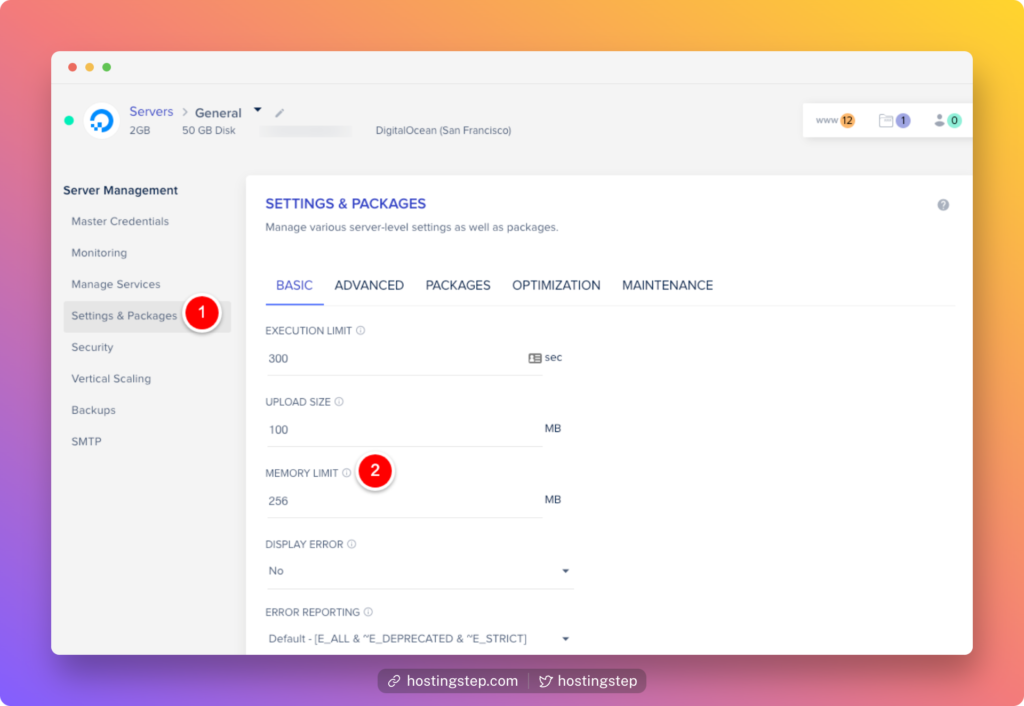
- Under the server Management, click the settings & packages tab.
- Now, you will be presented with Basic, Advanced settings. Under Basic, enter the new Memory limit and you are set to go.
Generally, static websites don’t need a large PHP memory limit. Even bigger websites may need a 128 to 256 MB PHP memory limit as a good starting point.